
How to Set Up SMS Forwarding to Telegram
When your whole team is working on registering accounts or talking to clients, constantly refreshing a browser tab for a verification code is just a waste of time. That is why we made sure incoming SMS from your virtual numbers automatically drop exactly where you work every day. You pick the channel.
Choose Your Forwarding Channel
- Telegram
The quickest option. Send codes to your personal chat or a shared team group. All marketplace verifications will be instantly available to everyone on the project. Free and unlimited. - Slack
Perfect if your whole company lives in Slack. Route your incoming telephony right there via a simple Incoming Webhook. No coding needed. Free of charge. - Email
The classic way to keep a solid archive. Easily find the required SMS using your inbox search. Included in your monthly number rental. - HTTP Webhook
For the tech team. Provide your own URL, and our system will automatically push all data there to instantly connect virtual numbers to your internal databases or custom software. - Mobile Phone
Forward messages to your actual phone if you are offline. Note: this is our only paid forwarding option, billed at standard carrier rates per message.
Get Your SMS Number Now
and
Begin Forwarding Messages to Telegram Instantly!
How to Set Up SMS Forwarding to Telegram
Step 1. Create a new bot to receive SMS messages in Telegram. To do this:
- Open BotFather (t.me/botfather) in Telegram;
- Send the command /newbot;
- Set a name for your bot;
- Save the API token received from the bot for further setup.
Example:
Use this token to access the HTTP API:
60655699310:AAFz6ptUnB71ILePbXKwB71ILePbXUeU4
Step 2. Create a new group in Telegram to receive SMS messages and add your bot to it. Then find out the group’s ID:
- Open the web version at https://web.telegram.org and log in with your account;
- Go to the group you created;
- Find the group ID in the browser’s address bar, which is indicated at the end of the URL, starting with the character “-“.
Example of the address line:
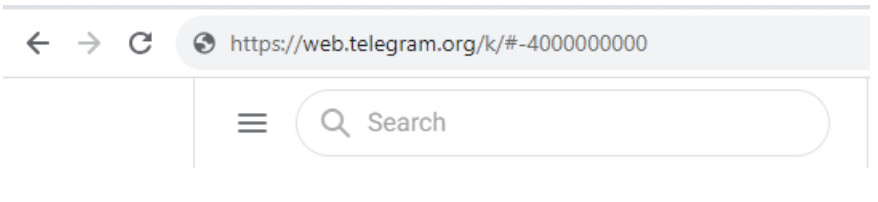
where:
“https://web.telegram.org/k/#-4000000000” – URL address
“-4000000000” – group ID
Step 3. Set up SMS forwarding to HTTP via a webhook in your personal account:
- In the phone number settings, enter the following HTTP webhook format to send messages to your Telegram group: https://api.telegram.org/botAPItoken/sendMessage?chat_id=groupID&text=Incoming%20SMS%20to%20%TO%%20from%20%FROM%%20%MESSAGE%
- Save the SMS forwarding settings.
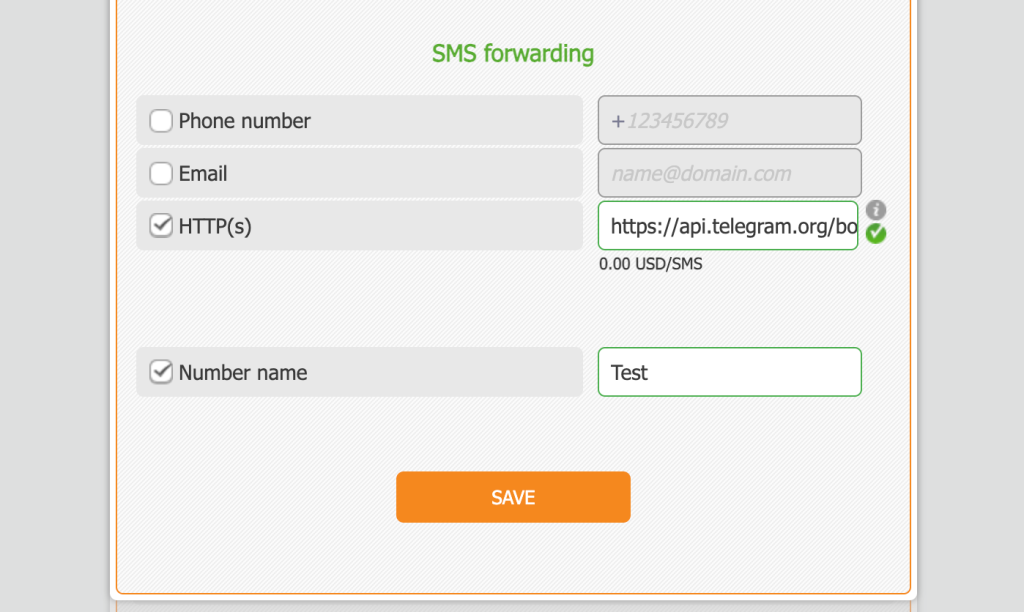
Now you will automatically receive incoming SMS messages in your Telegram group in the format: Incoming SMS to +XXXXX from XXXXX SMS Text
You can change the message format from the bot using variables:
- TO: the SMS recipient’s number;
- FROM: the SMS sender’s number;
- MESSAGE: the message text.
Get Your SMS Number Now
and
Begin Forwarding Messages to Telegram Instantly!
How to Set Up SMS Forwarding to Slack
If your remote team registers accounts, you do not need to share access codes manually every time. Route all incoming SMS from your Telnum number directly to a selected Slack channel using Incoming Webhooks.
Step 1. Create an app in Slack
- Go to api.slack.com/apps.
- Click Create New App and select From scratch.
- Give your app a clear name, like SMS Forwarder.
- Select your Slack workspace and click Create App.
Step 2. Activate Webhooks
- In the left menu of your new app, find the Incoming Webhooks section.
- Toggle Activate Incoming Webhooks to on. Now your app has permission to post messages.
Step 3. Generate a webhook URL
- Scroll down to the Webhook URLs for Your Workspace section.
- Click Add New Webhook to Workspace.
- Pick the desired chat to send messages to and click Allow.
- Copy the generated URL.
Step 4. Connect the number in your Telnum dashboard
- Log into your personal Telnum account.
- Open the settings for your virtual number.
- Find the forwarding setup field (Webhook URL or SMS Forwarding URL).
- Paste the copied Slack link there and save.
That is it. Now every message arriving at your number will pop up in your Slack.